Simplify your workflow with the NDX Customer Portal
Track Cases & Streamline Workflows

Review Case Details

Communicate with Your Lab
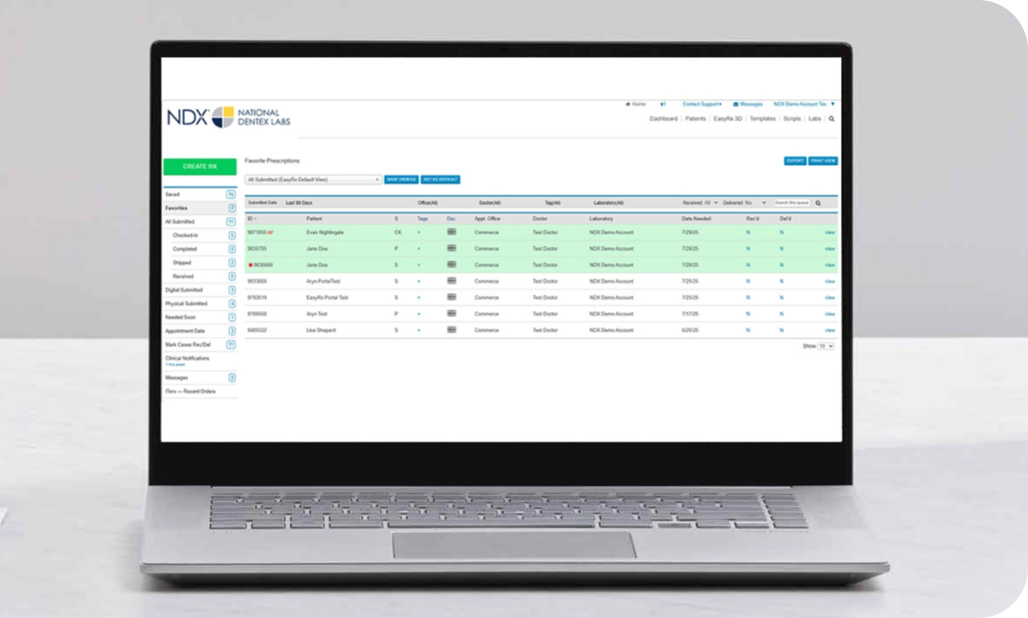
- See at a glance when cases are received, in production or shipped.
- Keep your team informed as cases return to your practice.
- Quickly search, filter and sort to keep your workflow running seamlessly.
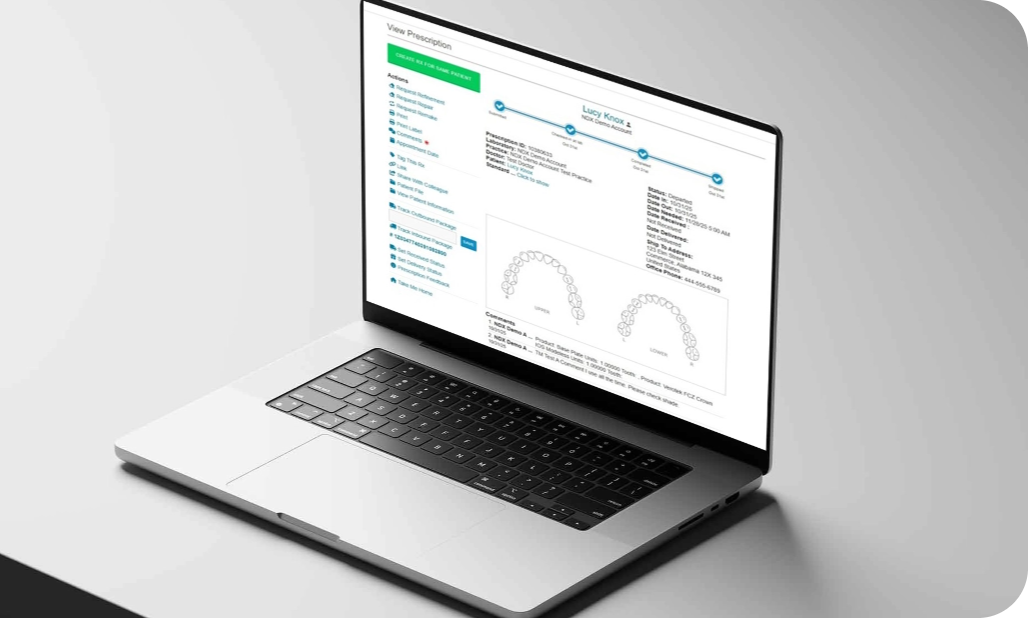
- Verify prescriptions for accuracy.
- Access real-time FedEx and UPS shipping updates.
- Read and respond to clinical notifications in real time.
- Send detailed instructions or questions directly to the lab.
- Recieve digest emails to stay updated on all lab activity.
.png?width=1026&height=617&ext=.png)

Join a Live Webinar
Get expert tips, best practices, and insider guidance on using your portal more efficiently, along with an open Q&A to answer your specific questions.
Register
Full User
Guide PPT
(Coming Soon)
Guide PPT
(Coming Soon)
Have More Questions?
Check out our Frequently Asked Questions, email us at NDXCustomerPortal@nationaldentex.com or give us a call at 1.833.299.0696.
Frequently Asked Questions
What is the portal login address?
How do I log in?
Use the username and password provided in your invitation email. If you have not received an invitation email, contact us at ndxcustomerportal@nationaldentex.com or call (833) 299-0696 for assistance.
How do I view my cases (orders)?
The Dashboard displays a list of cases “Checked In” by an NDX Lab within the past 90 days (excluding cases marked as “Delivered”).* You will have the ability to filter & search through all cases “Checked In” over time.
It is important to note that only cases sent to the lab after you activate your new portal will appear in the new NDX Customer Portal. Cases received by the lab before the launch of this portal can still be viewed in your previous portal at https://nationaldentex.com/?portal-login. However, it will not include current case updates. Any cases received by the lab between the launch date and your portal activation will not be visible in either portal. Please contact your lab for details on specific cases.
Will I still have access to the legacy portal?
Yes. You will continue to have access to the legacy portal to view case history up to the last case submitted before the launch of the new NDX Customer Portal at https://nationaldentex.com/?portal-login. Please note that cases received by the lab between the portal launch date and your individual portal activation will not be visible in either portal.
How do I pay?
To make a payment through the NDX Customer Portal, navigate to Lab Invoices & Payments in your profile and select Billtrust – View Bills & Pay. You may also continue using your existing payment method if you prefer.
Will I be able to see my case (order) history in the new portal?
Only cases sent to the lab after you log in and activate your new portal will appear in the new NDX Customer Portal. Cases received by the lab before the launch of this portal can still be viewed in your previous portal at https://nationaldentex.com/?portal-login. However, it will not include current case updates. Any cases received by the lab between the launch date and your portal activation will not be visible in either portal. Please contact your lab for details on specific cases.
What happens to cases (orders) in production during the transition to the new portal?
Updates to cases in production during this transition period will not be viewable in the new portal. Please contact your lab for details on specific cases.
How do I request a case pickup?
Please contact your preferred lab or visit the website for pickup options. Visit https://nationaldentex.com/labs to navigate to your preferred lab.
How do I request Supplies?
Please call or email us, and we’ll be happy to send you whatever supplies you need.
When will I be able to submit my cases (orders) via the portal?
We are working on this feature, and we will keep you updated on when this will be available.
How do I find specific cases (orders) or patients?
Click in the search bar in the Dashboard view and type in the name of the patient or order number. You can also view and search a list of all patients by clicking the “Patients” option at the top of the screen.
How do I view and respond to case (order) notifications from the lab?
A red asterisk (*) will appear to the left of the order ID in the Dashboard view whenever the lab has commented or requested a response on an order. View the orders and click "Notifications” in the left navigation menu to read and respond to lab notifications.
What does the “S” column in the Dashboard view indicate?
The S column indicates the current status of your orders. S = Submitted, CK = Checked in, C = Completed, P = Shipped, R = Received. The statuses CK, C, and P are assigned by the lab, while the R (Received) status is set by the practice.
What do the red letters that appear at the right of the order numbers in the Dashboard view indicate?
The two-letter codes indicate the following case types: RF = Case Refinement, RP = Case Repair, RM = Remake.
How do I attach files to cases (orders)?
Open the desired order and click "Upload a Digital Scan" to upload STL or other types of files.